My Library: Collections, Notes, Export & Cloud Sync
1. What It Does and Why It Helps
My Library is your personal reference collection. Save the papers you find, organise them for each project, keep your own notes, and export them for other tools. It works offline, and when you are signed in it syncs to the cloud so every device has the same library.
2. Save and Remove Articles
- Manual Saving: On any article card, click Save to Library. The button becomes Saved in Library and the counter next to My Library increases.
- Automatic Save on Cite: Whenever you cite an article in Word or copy its formatted citation, Biblion automatically saves that article to your personal library if it is not already present. You never have to worry about forgetting to save cited literature.
- Automatic Import from Document: When you launch Biblion in Microsoft Word or open a document containing citations, Biblion scans the document for all existing citations (both in-text citations and reference list entries). Any citations missing from your personal library are automatically fetched from PubMed (with abstracts and full metadata) and added to your library in a fast, background batch.
- If you are offline or behind an institutional firewall where PubMed is unreachable, Biblion seamlessly falls back to the metadata stored within the document's content controls.
- Existing user notes, tags, and favorites are 100% preserved.
- A friendly notification banner confirms how many missing citations were imported.
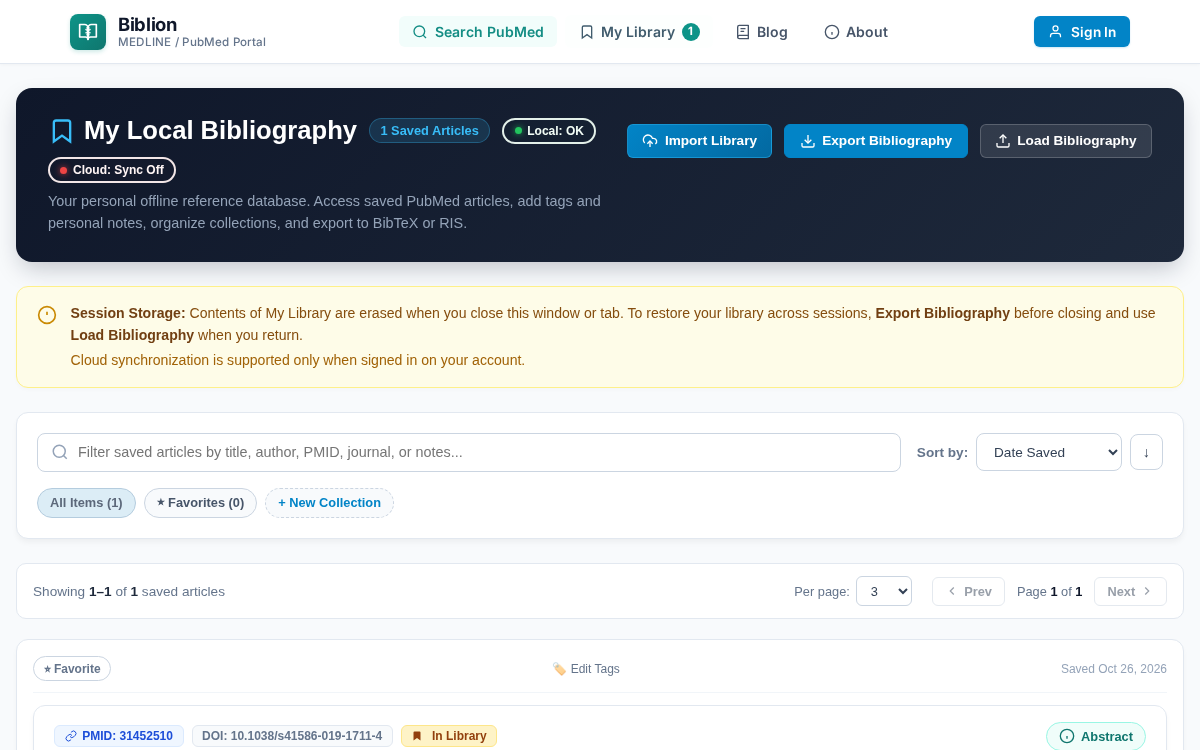
- Open My Library. The header reads My Local Bibliography with a count such as 1 Saved Articles.
- To remove an article, click Saved in Library again on its card. It is also removed from any collection.
A new library shows Your Library is Empty until you save or cite an article.
3. Collections
Use collections to group papers by project (for example "R01 Grant Proposal" or "Review Paper - Kinases"). Each collection can hold up to 500 articles.
- In My Library, click + New Collection.
- Enter a name (and, optionally, a colour), then click Save Collection.
- The collection appears as a chip showing its article count, e.g. Genomics Review 2026 (0).
- On an article, tick the collection's checkbox to add it. The count updates to (1).
- Click a collection chip to show only its articles; click again to clear the filter.
Good to know: one article can belong to several collections (up to 500 articles per collection). Deleting a collection removes only the folder; your articles remain in the library.
4. Tags, Notes and Favorites
- Tags: click Edit tags, enter labels separated by commas (e.g.
CRISPR, Precision), then Save Tags. They appear as#CRISPR,#Precision. - Notes: click the notes box, type your private note (e.g. Focus on figure 3 for Western blot analysis), then Save Notes.
- Favorites: click ☆ Favorite to star a paper (it turns to ★ Favorite). Use the favorites chip to show only starred papers.
Find things fast
Search your library by title, author, journal, PMID or your notes. Filter by collection, tag or favorites, and sort by date saved, title, author or year.
5. Interactive Reference Graph (Manuscript & Library Network)
Visualize your bibliography as an interactive citation network directly in My Library or on a full-screen canvas in your system's default web browser.
- In My Library, switch from List View to Graph View in the toolbar, or click Open Graph in Browser to launch the full-screen interactive graph in your default web browser.
- Visual Node Coding:
- Cited in Manuscript (Highlighted): Articles from your personal library that are actively cited in your Word manuscript are vividly highlighted with a glowing emerald ring.
- In Library — Uncited (Dimmed): Articles saved in your personal library that are not yet cited in the active manuscript are visually dimmed so you can immediately distinguish cited vs. uncited literature.
- Connected Citation Edges: Directed arrows (
A → B) connect papers that reference one another using PubMed citation link metadata (ReferenceListand NCBIELink). - External Referenced Papers (Levels 1 to 5): Toggle External Refs to display external literature connected to your library articles. You can configure citation horizon depth from Level 1 (direct 1-hop references) up to Level 5 (multi-hop citation pathways) and adjust the node budget (from 25 up to 500 nodes max).
- Interactive Node Inspector:
- Click any node in the graph to inspect its title, authors, journal, publication year, abstract, citation depth tier, and incoming/outgoing citation connections.
- Directly Insert Citation in Word, Remove Citation from Word, or Save to Personal Library from the node inspector panel.
- Expand references (1 hop), or simply double-click a node, to reveal the papers it cites and the papers citing it without raising the global depth. Double-click again to collapse.
- Layouts & Clusters:
- Network shows the citation web; Timeline places papers by publication year, with one row per topic cluster, so you can see how the field evolved and whether you cite only older or only recent work.
- Clusters shades groups of closely related papers and labels each with its most characteristic topic words.
- Discovery Insights (💡 button):
- Missing-citation suggestions: external papers linked to several of the references you already cite. Turn on External Refs (Depth L2 works best) to populate this list; add a suggestion to your library with one click.
- Coverage gaps: topic clusters in your library that your manuscript does not cite at all, or cites only once.
- Key & bridge papers: the most-cited papers in your graph, and the papers that connect two different topic clusters.
6. Export and Import
- Click Export Bibliography. The Export Local Bibliography window opens.
- Choose a format tab:
- BibTeX (
.bib): for LaTeX and Overleaf. Keys look likeSmith2020_31452510. - RIS (
.ris): for Zotero, Mendeley and EndNote. - JSON: a full backup with articles and collections.
- Download the file (e.g.
biblion-library.bib).
To restore a backup, choose Load Bibliography and select a Biblion .json file. A message confirms how many articles and collections were restored.
To import references from another reference manager (Zotero, EndNote, Mendeley, Paperpile, RefWorks, or Sciwheel), click Import Library and select or drop a .ris, .bib (BibTeX), or .json (CSL-JSON) file. Each import processes up to 500 articles (and up to 500 articles per collection); if a file exceeds 500 articles, the first 500 are imported and a warning indicates how many remaining records were skipped.
7. Offline Use
Your library is stored on your device, so you can read, search and edit it with no internet. If you save an article while offline, it is kept locally and Biblion shows Failed to synchronize with cloud. until the connection returns; nothing is lost.
8. Cloud Sync & Real-Time Push
When you are signed in with an active trial or subscription, Biblion syncs automatically:
- Real-Time WebSocket Push: When you run Biblion simultaneously on Microsoft Word desktop and in a web browser, saving, citing, or editing an article on one device broadcasts instantaneously over ActionCable WebSockets. Your other connected sessions update their local IndexedDB in real time (< 500ms) without waiting for window focus.
- On Sign-In: Your complete cloud library and collections are restored automatically.
- On Local Changes: Immediately after you save, delete or edit an article or collection.
- On Window Focus: When you return to Biblion after being away, auto-reconciling any offline changes.
A small spinner in the header shows that a sync is running. If you edit an article while a sync is in progress, your newest edit wins and is sent in the next sync.
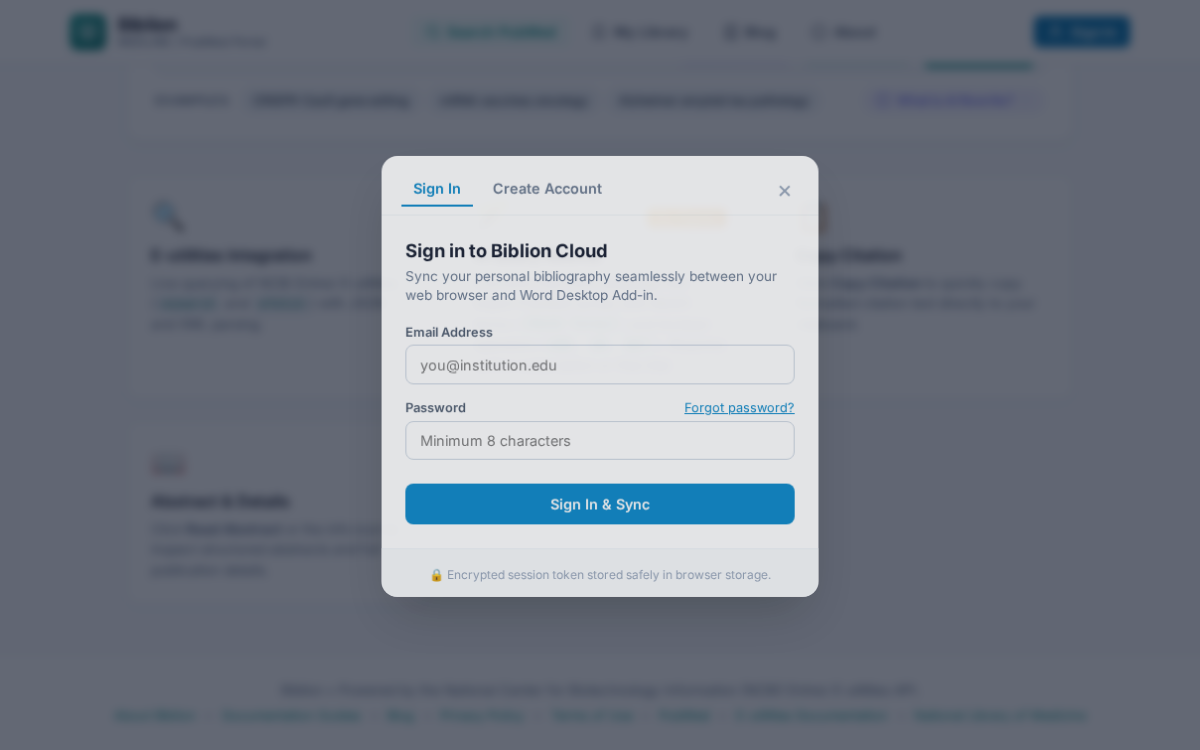
Shared computers: use Sign Out when finished. It clears the local copy; your cloud library is safe. Without signing in, the local library is cleared at the end of the session.
Related: Account & Sign-In, Subscription & Billing