Searching PubMed & Citing Articles
Biblion's PubMed / MEDLINE Search allows researchers, clinicians, and biomedical authors to explore the National Library of Medicine's 36+ million citations directly inside Microsoft Word or from any web browser. You can search using standard PubMed syntax, leverage AI query translation, or trigger fully automated AI Semantic Search to retrieve, evaluate, and rank candidate citations by semantic match percentage without leaving your document.
1. What It Does and Why It Helps
Navigating biomedical literature typically requires hopping between web browsers, PubMed search tabs, and reference managers. Biblion unifies literature discovery and manuscript writing into a single frictionless taskpane:
- Direct NCBI Entrez Integration: Live querying of PubMed E-utilities (
esearchandefetch) with automated XML parsing and MeSH indexing. - Three Discovery Modes:
- Standard Search: Instant keyword and Boolean searches across titles, abstracts, and authors.
- AI Query Rewrite: Translates natural language questions into expert Boolean/MeSH strings for review and customization.
- AI Semantic Search: End-to-end automated pipeline combining multilingual query synthesis, candidate retrieval, and deep semantic evaluation to present citations ranked by match percentage.
- Native-Language Literature Querying: Type research inquiries in your preferred native language (Spanish, German, French, Chinese, Japanese, etc.); Biblion translates domain-specific biological concepts into standardized English MeSH terms and PubMed queries automatically.
- 3D Abstract Flipping: Read complete structured abstracts without losing your place in search results.
- Instant Citation Insertion: Insert in-text citations and update your formatted reference list in Microsoft Word with a single click.
- Cloud Library Sync: Save references to My Library for offline access and cross-device synchronization.
2. Standard PubMed Search
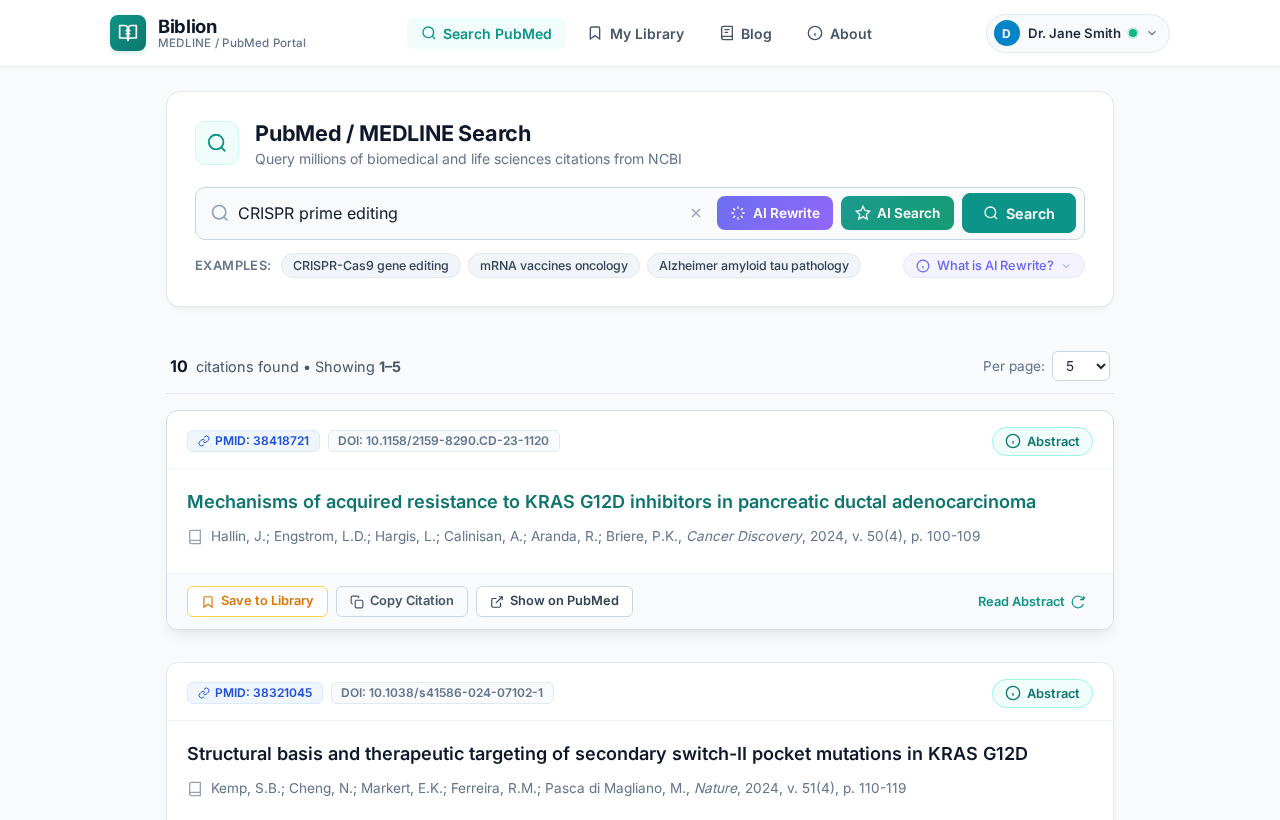
- Open the Search tab (the home page of Biblion).
- Type your terms in the search input (e.g.,
CRISPR prime editing). - Press Enter or click the Search button (magnifier icon).
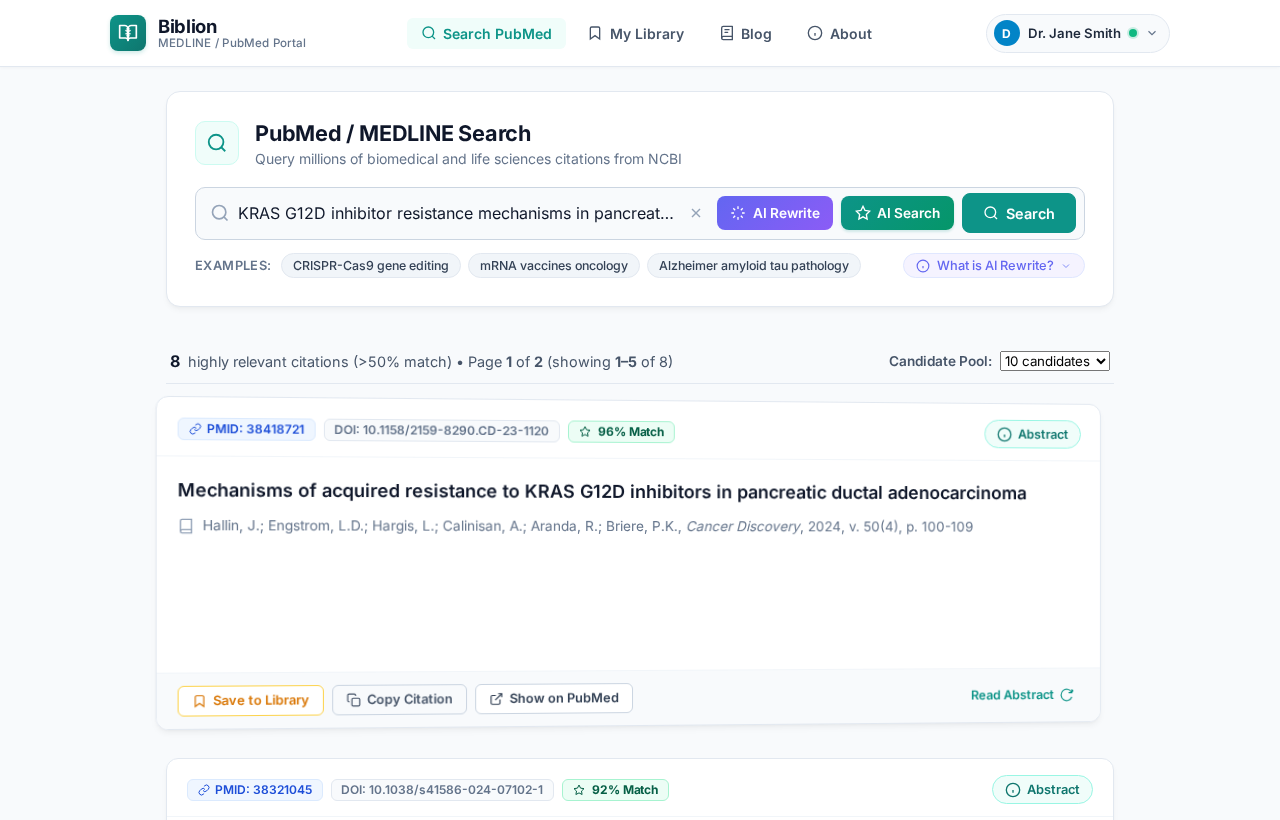
- Biblion displays the total number of matching records found and lists article cards with paging.
Search Railguards & Productivity Features
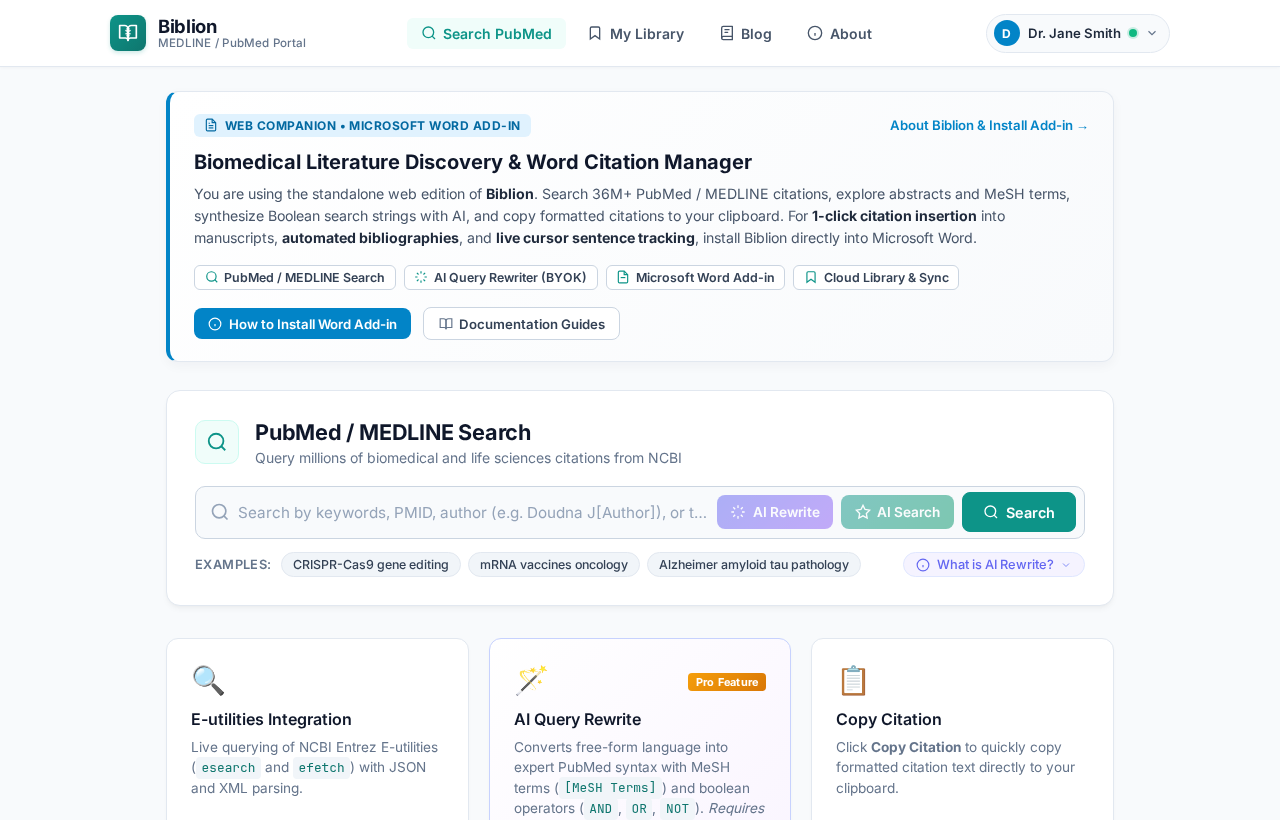
- Initial Feature Guide Cards: In the initial welcome state before searching, intuitive overview cards outline core capabilities (E-utilities integration, citation copying, abstract inspection), highlighting the AI Query Rewrite and AI Search Pro features with distinct Pro Feature badges.
- Example Query Chips: Clickable suggestions beneath the search box (e.g., CRISPR-Cas9 gene editing, mRNA vaccines oncology, Alzheimer amyloid tau pathology). Clicking a suggestion instantly populates the input and executes the search.
- Clear Button (×): Appears automatically while typing to clear the search input in one click.
- Query Length Railguard: The search input supports up to 1,000 characters, with a visual character counter appearing once your query exceeds 800 characters to safeguard against URL truncation and NCBI API limits.
- Full PubMed Syntax: Native support for Boolean operators (
AND,OR,NOT), quotation marks for exact phrase matching, and field tags such as[MeSH Terms],[Title/Abstract], or[Author].
3. AI Semantic Search (Relevance-Ranked Discovery)
Traditional keyword matching can struggle with exploratory, multifaceted, or conceptual biomedical inquiries (for example: "KRAS G12D inhibitor resistance mechanisms in pancreatic cancer" or "GLP-1 receptor agonists neuroprotective effects in Parkinson disease").
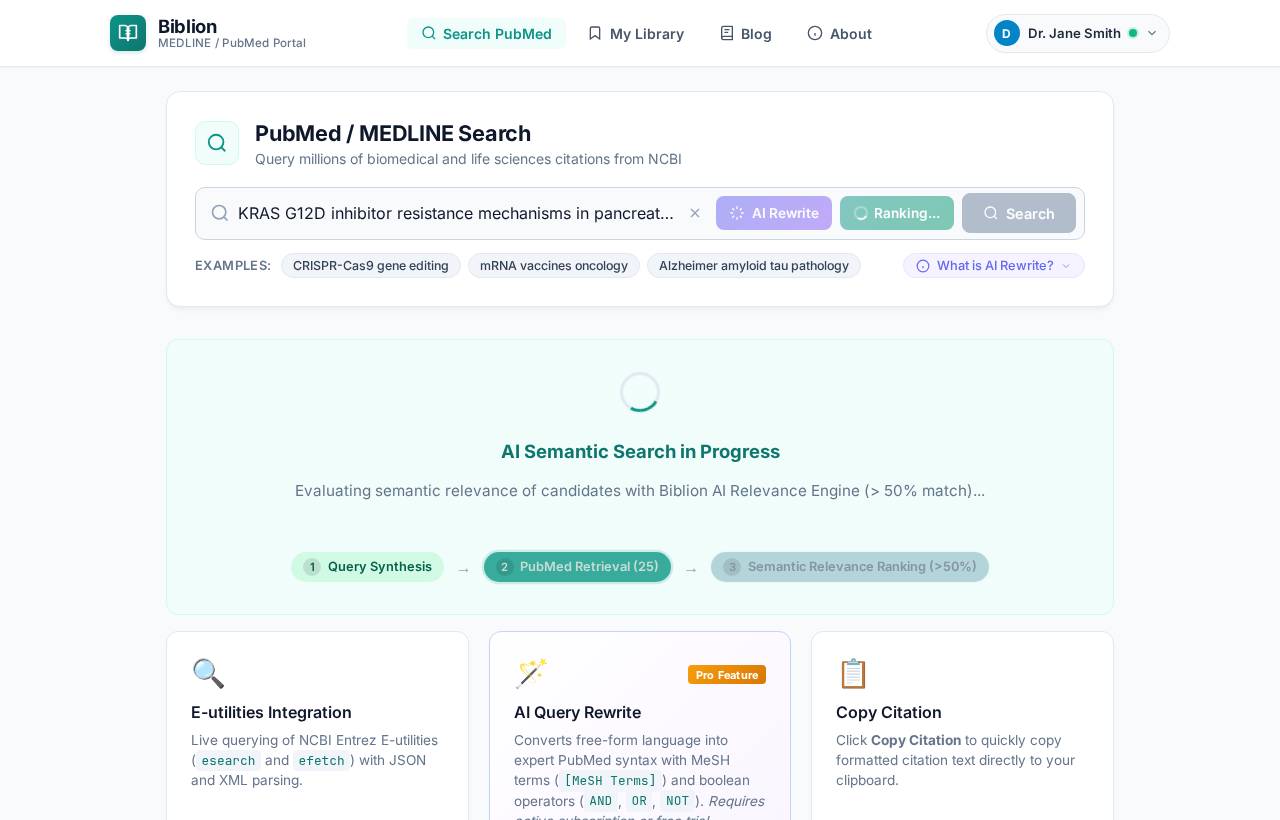
Clicking the AI Search button (sparkle icon) activates Biblion's automated multi-stage semantic discovery pipeline:
The Multi-Stage Semantic Pipeline
- Query Synthesis: Translates your free-form biomedical question into an optimized Boolean query with relevant MeSH headings and title/abstract keywords to ensure broad candidate recall.
- Candidate Pool Retrieval: Fetches a candidate pool of relevant records from NCBI PubMed (default: 25 candidates, customizable from 10 to 50 records).
- Deep Biomedical Semantic Evaluation: The Biblion AI Semantic Relevance Engine reads candidate titles and abstracts, evaluating the conceptual alignment of each article against your original research inquiry on a continuous scale (0–100%).
- Threshold Filtering & Re-Ranking: Discards non-relevant results (score < 50%) and sorts all remaining citations in strict descending order of semantic relevance.
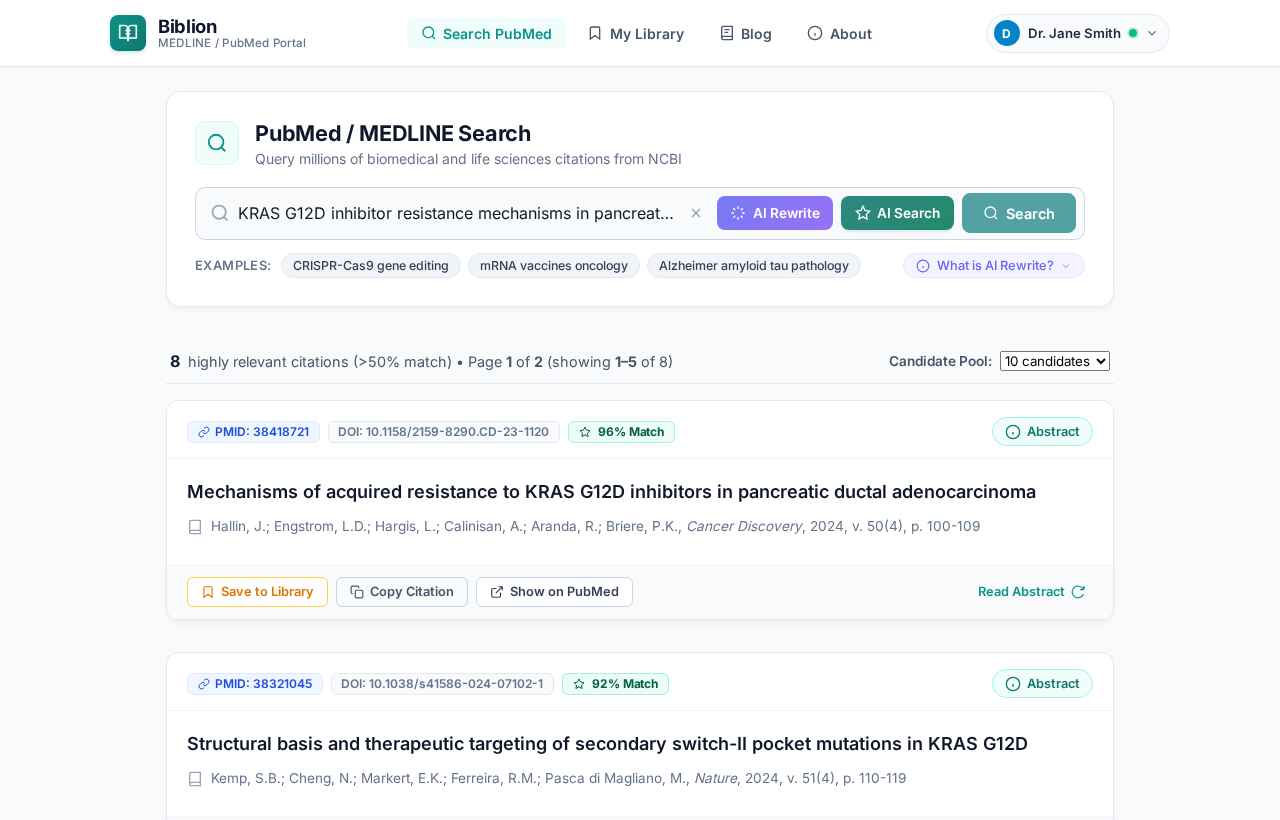
- Client-Side Pagination: Presents high-relevance citations 5 records at a time, allowing you to page through the most pertinent papers quickly.
Candidate Pool Sizing
You can customize the candidate pool size directly from the results toolbar (Candidate Pool: 25 candidates):
| Pool Size | Typical Latency | Best Used For |
|---|---|---|
| 10 Candidates | ~2–3 seconds | Highly specific queries or quick sanity checks |
| 25 Candidates (Default) | ~4–6 seconds | Ideal balance of broad recall, precision, and responsive execution |
| 50 Candidates | ~8–12 seconds | In-depth literature reviews and multi-pathway exploratory queries |
Color-Coded Semantic Match Badges
Each citation card displays an interactive semantic match badge indicating relevance:
- High Relevance (≥ 70% Match): Displayed in emerald green with relative rank position (
✨ 96% Match,#1). - Moderate Relevance (50–69% Match): Displayed in teal for contextually relevant or supporting studies.
- Filtered (< 50% Match): Automatically pruned to eliminate noise and save valuable reading time.
Exploring Topic Clusters & Iterative Query Refinement
When you run AI Search, Biblion organizes the results view into two tabs—Search Results (default) and Clusters—so you can uncover distinct research themes across your retrieved literature:
- Lazy Topic Discovery: Selecting the Clusters tab triggers Semantic Affinity Clustering across up to the top 25 ranked articles, displaying a live progress bar as the Biblion AI Semantic Relevance Engine evaluates conceptual similarity across full titles, abstracts, MeSH headings, and citation links.
- Research Theme Summaries, AI Synopsis & Flippable Article Cards: Each cluster card presents a descriptive topic title, key biomedical concepts, cohesion percentage, and a two-tab details panel:
- Cluster Synopsis (Default): Compiles an AI-synthesized literature synopsis grounded in the titles, abstracts, MeSH headings, publication years, journals, and match scores of the articles in that cluster—complete with bulleted key findings and PMID references.
- Representative Articles: Lists the cluster's articles as interactive, flippable PubMed cards so you can flip any card for its structured abstract, save papers to research folders, or insert citations directly into Word.
- Editable Refined Queries: Every cluster proposes a targeted natural-language query directly inside an editable query editor on the cluster card. You can customize the query text before clicking Search Cluster to immediately launch a focused AI Search and return to the Search Results tab—or click Load in Search Box to place the query into the main search bar for further refinement.
Tip: Topic Clusters are available exclusively inside AI Search mode, enabling iterative deep dives into specialized mechanisms, resistance pathways, or patient subgroups without losing your workflow context.
Multilingual & Native-Language Querying
PubMed's database indexing is overwhelmingly structured in English, which often creates an unnecessary barrier for global biomedical investigators and clinicians whose primary working language is not English.
With AI Semantic Search, you can enter inquiries directly in your native language:
- Spanish:
"mecanismos de resistencia a los inhibidores de KRAS G12D en cáncer de páncreas" - German:
"Wirkungsmechanismen von GLP-1-Rezeptor-Agonisten bei neurodegenerativen Erkrankungen" - French:
"immunothérapie et biomarqueurs prédictifs dans le mélanome métastatique" - Chinese:
"KRAS G12D 抑制剂在胰腺癌中的耐药机制" - Japanese:
"非小細胞肺癌におけるEGFR阻害薬耐性メカニズム"
The AI Query Synthesizer automatically identifies the language, extracts the underlying biochemical mechanisms and clinical targets, maps them to official English MeSH headings and [tiab] search strings, and retrieves the candidate pool. The Deep Semantic Evaluator then cross-lingually evaluates candidate abstracts against your original premise—delivering the same 95%+ precision without requiring manual English translation.
(Requires an active Biblion Pro subscription or 15-day free trial).
4. Read an Article Card
Each article card displays essential bibliographic metadata at a glance:
- PMID & DOI Links: Direct links to the official PubMed record and publisher DOI.
- Article Title & Authors: Formatted author lists with lead investigator and et al. truncation.
- Journal & Publication Date: Source journal abbreviation, year, volume, and issue.
- Semantic Match Badge: Prominent percentage score and ranking order when running AI Semantic Search.
3D Abstract Flip
Click the Abstract button on any card to flip it over in 3D space and inspect the complete abstract text.
- Structured abstracts display standard NLM section labels (BACKGROUND, METHODS, RESULTS, CONCLUSIONS).
- Click Close Abstract or the flip button to return to the front view without losing your place or page position in the search results.
5. Working in Microsoft Word (Taskpane Mode)
When running inside Microsoft Word (Desktop or Web), the search interface adapts automatically to narrow taskpane dimensions (320px–420px):
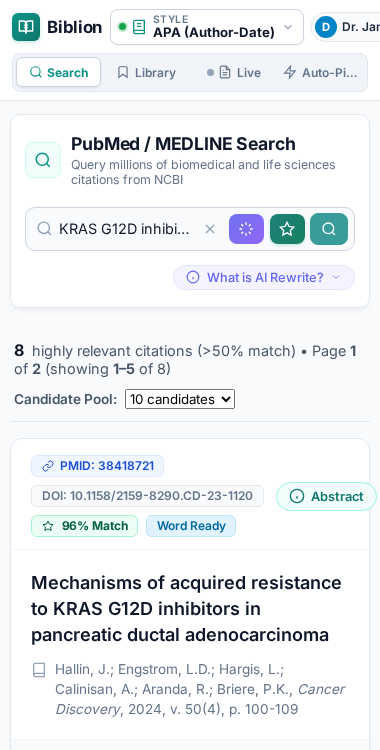
- Compact Search Controls: Action buttons automatically condense into icon badges with informative tooltips.
- 1-Click In-Text Citation: Click Insert Citation on any card to immediately insert a citation at your document cursor (e.g.,
(Hallin et al., 2024)or[1]) and automatically update the bibliography section at the end of the manuscript. - Style Reformatting: Change your citation style at any time via the top header dropdown (e.g. APA 7th, Vancouver, Nature, IEEE, AMA). All inserted citations and bibliography entries reformat instantly. See Citation Styles for full details.
6. Save to Library & Offline Access
Click Save to Library on any article card (front or back view) to bookmark the reference in your personal library:
- The button toggles to Saved in Library for immediate visual feedback.
- The reference is stored locally in IndexedDB and automatically synchronized with the Biblion cloud when signed in.
- The My Library counter badge in the navigation updates in real time.
- See Library & Sync for organization, tagging, and BibTeX/RIS/CSL-JSON export workflows.
7. Troubleshooting & Common Scenarios
| You See | Meaning | Recommended Action |
|---|---|---|
| No PubMed records found | Zero NCBI matches for the query terms | Simplify terms, remove restrictive qualifiers, or use AI Rewrite to broaden syntax |
| No citations exceeded the >50% relevance threshold | Candidates were retrieved from PubMed, but none demonstrated strong conceptual alignment | Click the Candidate Pool dropdown and select 50 candidates, or refine your query prompt |
| Search Request Failed (503 / Network Error) | NCBI Entrez servers are temporarily throttled or unavailable | Click Retry after a few seconds |
| Sign In Required for AI Search | AI Semantic Search requires a Biblion account | Click Sign In to log in or start your 15-day free Pro trial |
8. Summary of Typical Workflow
- Enter Query: Type your topic or research question in the search input.
- Choose Discovery Action:
- Click Search for exact keyword/Boolean retrieval.
- Click AI Rewrite to generate and review MeSH Boolean syntax.
- Click AI Search for relevance-ranked semantic discovery.
- Inspect & Flip: Review semantic match scores and flip cards to read abstracts.
- Cite or Bookmark:
- In Word: Click Insert Citation to cite at cursor.
- In Browser: Click Copy Citation or Save to Library.
- Switch Citation Styles: Toggle between APA, Vancouver, Nature, and other styles as required by your target journal.
Related Guides:
- Video Walkthrough: Biblion AI Semantic Search on YouTube — Multi-stage AI pipeline, candidate retrieval, 3D abstract verification, and 1-click citation in Word.
- AI Query Rewriter Guide
- Word Add-in User Guide
- Library Management & Cloud Sync
- Citation Styles & Bibliographies
- Using Biblion in Standalone Web Mode