Live References: See the Citations Under Your Cursor
1. What It Does
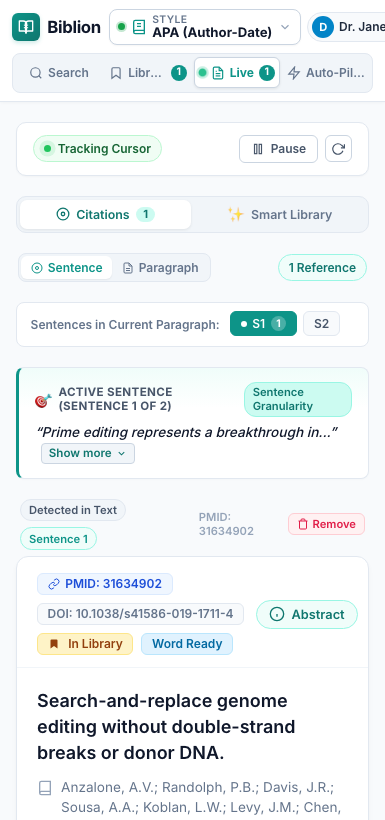
Live References watches where your cursor is in your Word manuscript. Whenever you click into or type in a sentence, Biblion shows the references behind that sentence in the Biblion taskpane. There is no need to scroll to the bibliography to check what a citation points to.
Video Walkthrough: ▶️ Watch Biblion Live References on YouTube (https://www.youtube.com/watch?v=jnjh5Efjlh8)
2. Why It Matters
- Verify claims quickly while editing: see the title, authors, journal and abstract link for the paper cited in the sentence you are reading.
- Catch loose references: Biblion also recognises PMIDs and DOIs you typed as plain text and offers to turn them into managed citations.
- Stay oriented in long documents: the active sentence is highlighted in the taskpane so you always know which sentence the references belong to.
3. How to Use It
- Open your manuscript in Microsoft Word (via the Biblion taskpane) or open the In-Browser Manuscript Editor (
/editor). - Click the Live References tab (or Live Refs in the Browser Editor sidebar).
- Switch effortlessly between the three ergonomic mode tabs:
- Cursor Citations: View references currently cited at your active cursor position. Navigate sentence-by-sentence (S1, S2, ...) or view paragraph-wide citations with one click.
- Smart Recommendations: View candidate citations ranked from your personal library using the Biblion AI Semantic Relevance Engine, tailored to the active sentence at your cursor while using the containing paragraph for contextual disambiguation.
- Reference Graph: Explore an interactive citation network of your manuscript and personal library, where papers cited in your manuscript are highlighted, uncited library papers are dimmed, and papers that reference one another are connected with directed arrows. You can also click Open in Browser to explore the full-screen graph in your system's default web browser.
- Click or type anywhere in your document. Cursor jumps update immediately, while typing updates after a brief debounce (~450ms in the Browser Editor).
What the badges mean
| Badge | Meaning |
|---|---|
| Biblion Control | A citation inserted by Biblion (a Word content control). Fully managed: it renumbers and reformats with your style. |
| Detected in Text (PMID) | You typed something like PMID: 28453412. Biblion looked the article up for you. |
| Detected in Text (DOI) | Biblion found a DOI such as 10.1038/171737a0 in the sentence. |
For plain-text detections, click Convert to Citation Control to turn it into a managed citation.
Empty paragraphs
If your cursor is in a blank paragraph, the tab shows No citations found at current cursor position. This is normal.
Ergonomic Paragraph Truncation (Show More / Show Less)
Long manuscript paragraphs can occupy excessive vertical space in Word's taskpane. To maximize ergonomic efficiency:
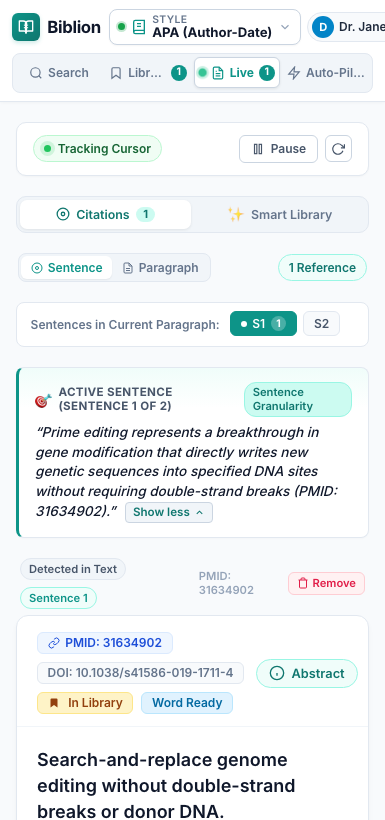
- Both Cursor Citations and Smart Recommendations display an abbreviated preview of the active paragraph context by default (showing the first 5–6 words followed by
...). - Click Show more to reveal the full paragraph text when you need to inspect complete context.
- Click Show less to collapse the paragraph back into the compact preview, keeping citation cards and candidate recommendations in clear view without scrolling.
4. Smart Library Recommendations (AI Citation Ranking)
The Problem: Why Personal Libraries Often Become "Citation Graveyards"
Every researcher, clinician, and medical student diligently saves articles. Over months and years of literature exploration, your personal bibliography grows to dozens or hundreds of saved PubMed papers.
Yet when it comes time to draft a manuscript or grant proposal in Microsoft Word, personal libraries are largely useless in practice.
Why does this happen?
- The Recall Gap: While writing a complex paragraph about cellular pathways or clinical trial outcomes, you cannot easily remember which specific paper from six months ago contained that exact supporting statistic or mechanistic detail.
- Context-Switching Friction: Pausing every three sentences to manually search your 300-paper library breaks your writing flow. Instead, authors either re-search PubMed from scratch or repeatedly cite the same handful of familiar papers from memory.
Your saved library ends up as a passive archive rather than an active writing assistant.
How AI Citation Ranking Solves This
Biblion’s AI Citation Ranking activates your personal library by bringing the papers directly to where your cursor is—both in Microsoft Word and in the In-Browser Manuscript Editor.
As you write or move your cursor between sentences, the Biblion AI Semantic Relevance Engine evaluates candidate articles in your saved personal library specifically against your active target sentence, while taking the containing paragraph context into account to disambiguate biological terms and scope.
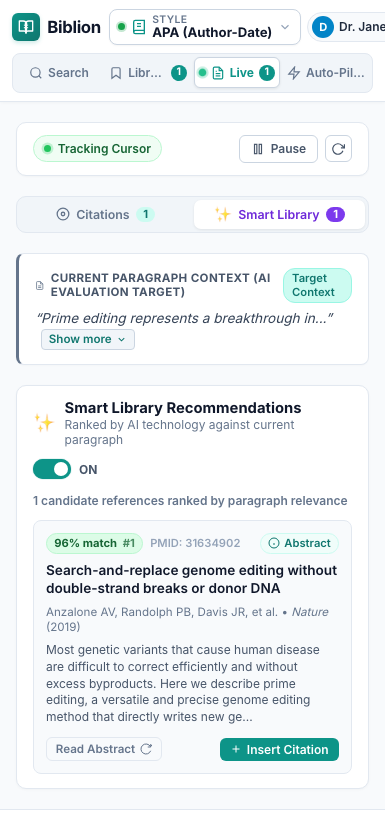
- Dynamic Relevance Match: The Biblion AI Semantic Relevance Engine computes continuous relevance probability and displays an intuitive score (e.g.
96% match #1) tailored to the sentence under your cursor. - Interactive Sentence Navigation: When a paragraph contains multiple sentences, click
S1,S2, etc. in Smart Recommendations to preview tailored recommendations for any sentence in the paragraph without losing paragraph context. - Interactive 3D Abstract Flip Cards: The taskpane presents the candidate paper's title, authors, journal, year, and relevance. Click the Abstract button, the article title, or "Read Abstract" to flip the card and inspect the full, structured PubMed abstract without navigating away. Click Close or Back to return to the front overview, or insert citations directly from either side of the card.
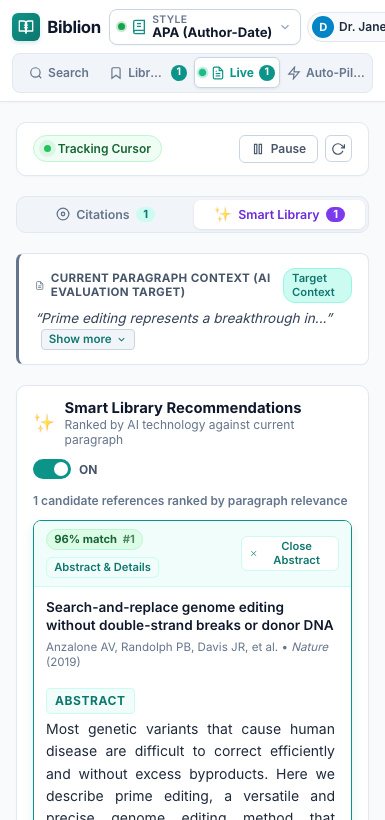
- 1-Click Insertion: Clicking + Insert Citation inserts a fully managed citation at your cursor position in Microsoft Word or your Browser Editor manuscript according to your active bibliography style (APA 7th, Vancouver, AMA, Harvard, IEEE, Nature).
Key Capabilities & Smart Guardrails
1. Full User Control — Defaults to OFF
AI Citation Ranking never runs without your explicit choice. The Smart Library Recommendations toggle in the taskpane header is OFF by default. You can enable or disable it at any time with a single click.
2. Single-Run Sentence Policy & Smart Candidate Selection (Zero Waste)
Scientific writing involves constant cursor movement—clicking between words, fixing typos, and navigating sentences.
Biblion enforces a Single-Run Sentence Policy: moving your cursor within the same unchanged sentence never triggers redundant AI evaluations, while moving to a different sentence in the same paragraph automatically updates recommendations for the new sentence. For larger libraries (>20 articles), Biblion automatically prioritizes the 20 strongest candidate matches for your sentence and paragraph before semantic scoring.
3. Client-Side Privacy & Zero-Persistence API Keys
All AI evaluations are executed directly from your Word Add-in client over secure HTTPS to the OpenRouter Decisions API. Your manuscript text and library records never transit through intermediate third-party proxy servers. Furthermore, your OpenRouter API key is strictly session-scoped (stored in memory and volatile session storage) and is automatically wiped whenever you log out or close Microsoft Word.
Transparent Cost Estimates (Bring-Your-Own-Key)
Biblion operates on an open Bring-Your-Own-Key (BYOK) model via OpenRouter, ensuring you pay only the exact upstream cost of compute with zero markups or hidden fees.
Because Biblion leverages lightweight, high-efficiency AI decision models rather than bloated generative chatbots, the cost is astonishingly low:
| Scope | Typical Token Usage | Estimated Upstream Cost |
|---|---|---|
| Single Reference Evaluation | ~336 input tokens / 22 output tokens | ~$0.000014 (less than two-thousandths of a cent) |
| Batch of 10 Candidate References | ~3,360 input tokens / 220 output tokens | ~$0.00014 (approx. 1.4 cents per 100 evaluations) |
| Full Manuscript (30 Paragraphs) | ~30 paragraph evaluations across library | ~$0.01 – $0.03 (just pennies for an entire paper) |
A modest $5 deposit on OpenRouter can easily power months of intensive academic writing and manuscript drafting with Biblion. You retain full control over your spending and can turn the feature off whenever you wish.
Prerequisites & Subscription Requirements
To use Smart Library Recommendations in Microsoft Word:
- User Account & Active Subscription: AI Citation Ranking is a premium feature available during your 15-day Free Trial and with an active Biblion Pro subscription.
- Dedicated OpenRouter API Key: Enter your OpenRouter key in the Smart Library Search tab of AI Settings (
⚙️icon in the Word taskpane or Web Portal). Because AI providers are feature-specific, configuring OpenRouter here operates independently from whichever provider (OpenAI, Anthropic, Gemini, or OpenRouter) you select for the AI Query Rewriter. - Microsoft Word Environment: This feature is exclusive to the Biblion Microsoft Word Add-in and is not available in standalone web browser mode.
5. Smart Sentence Detection
Scientific writing is full of dots that are not the end of a sentence. Biblion understands common cases, so a sentence is not split wrongly at:
et al.,e.g.,i.e.,Fig.,Refs.,vs.,Dr.,Prof.,vol.,pp.- author initials such as
Watson, J. D. - decimals such as
4.5%orp < 0.05
Example: in "According to Smith et al. the rate was 4.5% in the first cohort. However, Jones et al. disputed this." Biblion correctly treats the first half as one sentence.
6. Good to Know
- Automatic Personal Library Sync: Whenever you open a document or launch Biblion in Microsoft Word, any citations found in the document that are not yet in your personal library are automatically imported. This guarantees that your personal library is always up-to-date and immediately ready for AI Citation Ranking.
- Live References and AI Citation Ranking work only inside Microsoft Word. In a normal web browser the tab is hidden. See Using Biblion in a Web Browser.
- It reads your document to find citations; it does not change your text unless you click Convert to Citation Control or Insert Citation.
- Video Walkthrough: Biblion Live References on YouTube — Real-time cursor tracking, sentence-by-sentence citation inspection, and 3D abstract verification.
Related: Citation Styles & Bibliographies, Searching PubMed, My Library & Cloud Sync